


 Tweet
Tweet
UPDATED : SCROLL DOWN FOR UPDATE
Hi guys ,
,
I`ve been using TV Tuner for a long time now and thought of making a tutorial, as we dont have any tutorial on TV Capping. TV capturing and producing High quality Videos is very lenghty and tiring process if u dont know anything.
Don't Worry, this tutorial is going to make everything simple for u
Steps before Setting up your TV Tuner.
1. First and very Important step is to confirm that you get Cable Connection directly from the Emplifier and to the max only ONE Split in the connection .
2. I use PINNACLE. Experts suggest to go for PixelView TV Tuner Card, so go for it if u r planning to purchase a new one .
3. I think settings for most of the TV Tuner will be same. If you use PIXELView and still have queries after this tutorial then u can ask aagantuk bhai without any hasitation .
Settings in TV Tuner.
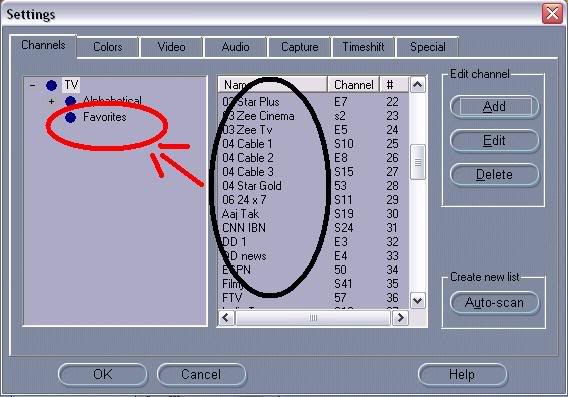
1. After Installation, run auto channel scan.

2. You can also rename the channles and u watch only selected channels then u can drag them into favourite folder for quick access.
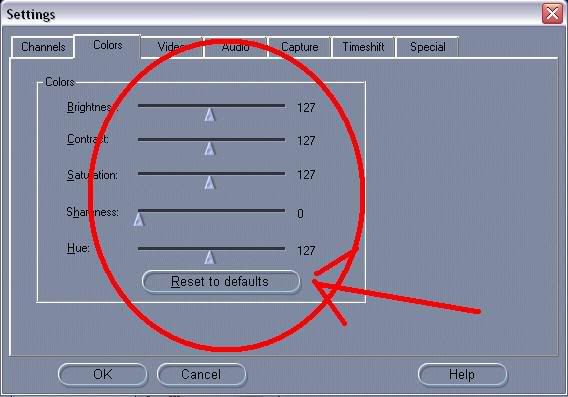
3. You can change colour settings as per your requirement, but I prefer not to change it and let it remain as DEFAULT.
Select "2 fields deInterlaced" option in Video Display. This is the MOST IMPORTANT step for clarity of Video.

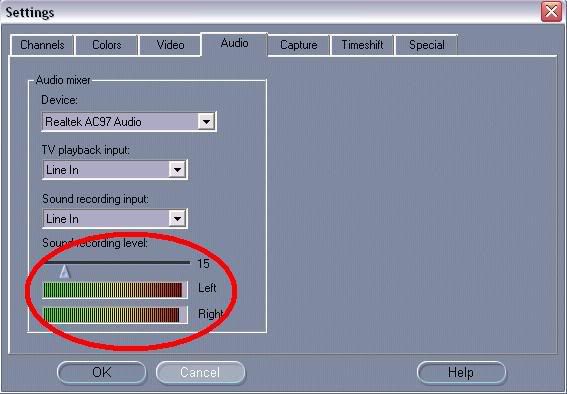
5. Keep sound recordning level as low as possible. I prefer to keep at 15-20.
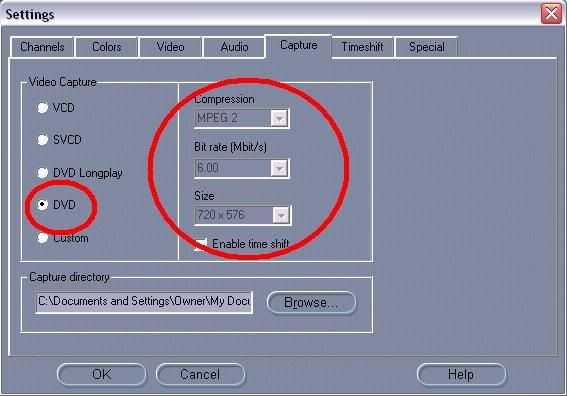
6. Capturing is most important part. The higher quality of video u record, higher quality of video u can produce. its as simple as that.
I record video in DVD MPEG2 format. bitrate 6 Mbits/s and Video size 720 x 576.
We are done with Settings in TV Tuner. Second part is to Make high Quality Caps .
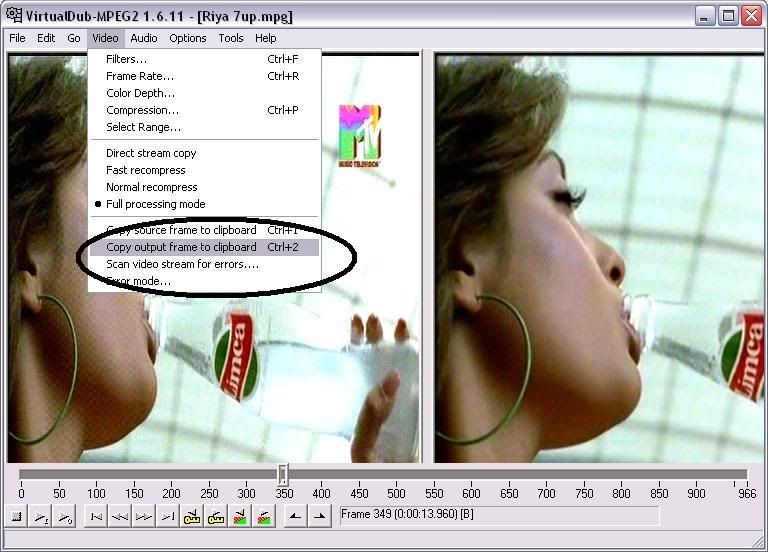
Note : Every TV TUner has this option, which is highlighted in below image. You have to be very accurate to cap in fraction of second.

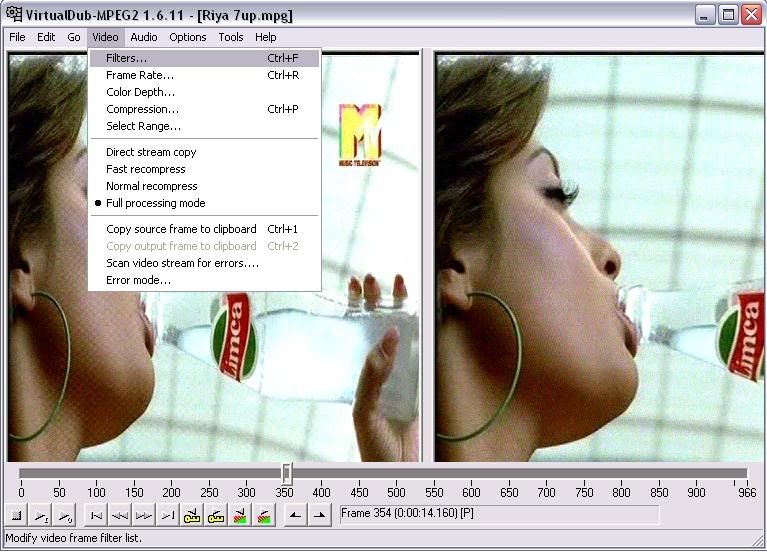
But wait, we have a second option and that is VirtualDub .
to be continued ......
Hi guys
,I`ve been using TV Tuner for a long time now and thought of making a tutorial, as we dont have any tutorial on TV Capping. TV capturing and producing High quality Videos is very lenghty and tiring process if u dont know anything.
Don't Worry, this tutorial is going to make everything simple for u
Steps before Setting up your TV Tuner.
1. First and very Important step is to confirm that you get Cable Connection directly from the Emplifier and to the max only ONE Split in the connection .
2. I use PINNACLE. Experts suggest to go for PixelView TV Tuner Card, so go for it if u r planning to purchase a new one .
3. I think settings for most of the TV Tuner will be same. If you use PIXELView and still have queries after this tutorial then u can ask aagantuk bhai without any hasitation .
Settings in TV Tuner.
1. After Installation, run auto channel scan.
2. You can also rename the channles and u watch only selected channels then u can drag them into favourite folder for quick access.
3. You can change colour settings as per your requirement, but I prefer not to change it and let it remain as DEFAULT.
Select "2 fields deInterlaced" option in Video Display. This is the MOST IMPORTANT step for clarity of Video.
5. Keep sound recordning level as low as possible. I prefer to keep at 15-20.
6. Capturing is most important part. The higher quality of video u record, higher quality of video u can produce. its as simple as that.
I record video in DVD MPEG2 format. bitrate 6 Mbits/s and Video size 720 x 576.
We are done with Settings in TV Tuner. Second part is to Make high Quality Caps .
Note : Every TV TUner has this option, which is highlighted in below image. You have to be very accurate to cap in fraction of second.
But wait, we have a second option and that is VirtualDub .
to be continued ......


 �-)��O.o���]״)���




Comment