


 Tweet
Tweet
Introduction
The Galaxy S lineup is no stranger to versioning - the original Galaxy S relied on half a dozen different editions to achieve its market success. Its successor will obviously take a similar path as we just got its first body double in the face of the Samsung I9103 Galaxy Z. With Tegra 2 stepping in for the Exynos chipset and SC-LCD taking the place of the new generation SuperAMOLED Plus, the Galaxy S Z should be covering for the cases when the Galaxy S II is just slightly out of budget, while at the same time saving on the precious AMOLED panels.
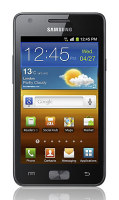
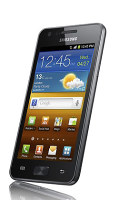
Now, the Samsung I9100 is obviously a winning formula so Samsung should be extra careful with any changes that it introduces.
Tegra 2 is a fine alternative to Exynos and we already know what kind of performance to expect. We’ve seen the switch to SC-LCD before – with the I9003 Galaxy SL. With the numbers the SuperAMOLED Plus packing I9100 is selling, it’s no surprise that Samsung will try to sell a few units that don’t use up their scarce SuperAMOLED recourses.
We’ve summarized the specs of the Samsung I9103 Galaxy Z to get you acquainted with the device quickly, so we can move on to the fun stuff.
Samsung I9103 Galaxy Z at a glance:
General: GSM 850/900/1800/1900 MHz, 3G with HSPA
Form factor: Touchscreen bar phone
Dimensions: 125 x 66.1 x 9.5 mm, 135g
Display: 4.2" 16M-color SC-LCD capacitive touchscreen, 480 x 800 pixels
CPU: Dual-core 1GHz ARM Cortex-A9 processor, GeForce GPU, Tegra 2 chipset
Memory: 1GB RAM, 2GB ROM, 8GB storage, microSD card slot
OS: Android OS, v2.3.3 Gingerbread with TouchWiz 4.0
Camera: 5 megapixel auto-focus camera with LED flash; face detection, geo-tagging; 1.3MP front-facing camera
Video recording: 720p video recording
Connectivity: Wi-Fi b/g/n, Bluetooth 2.1 with A2DP, standard microUSB port, GPS receiver with A-GPS, 3.5mm audio jack, FM radio
Battery: 1650mAh
Misc: Built-in accelerometer, multi-touch input, proximity sensor, Swype text input, Office document viewer/editor
Clearly, the I9103 Galaxy Z is meant as a companion of the I9100 Galaxy S II – early pricing info also suggests that the two belong to different market segments.
We would have liked an 8MP camera and 1080p video capture, but if sticking to the 5MP/720p camera specs means we can munch on Gingerbread for less cash than the S II would cost, then we won’t complain. After all, the original Galaxy S had a similar camera module and we’re quite pleased with it.
Before proceeding further, we should point out that we’re using a pre-production model of the Samsung I9103 Galaxy Z and the hardware might change before the design is finalized. The software looks identical to the one in the I9100 Galaxy S II, so that probably won’t see much (if any) changes. Further optimizations to suit the new chipset seem likely though.
It may not have the slender, 8.5mm frame of its big brother, but the I9103 Galaxy Z is a good looking device. Join us on the next page, as we do a proper inspection of its hardware.
Design and construction
If not for the model number, we probably wouldn’t be comparing the I9100 and I9103 directly in terms of hardware, but we have no choice now.
One of the major bragging points of the regular Galaxy S II is just how thin and light it is. The I9103 Galaxy Z however measures 9.5mm thick and weighs 135 grams. Not that that’s really slim and light (given the size) even by today’s standards, but it’s not as headline grabbing as the 8.5mm waistline and the 116 g weight of the I9100.
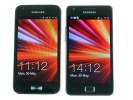
Samsung I9103 Galaxy Z and I9100 Galaxy S II side by side
The SC-LCD screen on the I9103 Galaxy Z has a 4.2” diagonal with 480 x 800 pixels resolution. It’s pretty bright and with good image quality and viewing angles. The blacks are not nearly as deep as on a SuperAMOLED unit, but judging them by the LCD standards they are actually quite good.
The front looks very similar to the front of the SuperAMOLED Plus packing Galaxy S II. It’s just the home button that’s different. So, above the screen we have (from left to right) the 1.3MP video call camera, ambient light sensor, proximity sensor and earpiece.
The SC-LCD unit is good • the sensor array, secondary camera and earpiece
Below the display there are three keys only – the touch-sensitive menu and back buttons are on either side of a hardware home key. A long press on the menu key launches the search, so in effect users still have a dedicated search key. As usual, pressing and holding the home key activates the task switcher.
The three Android keys below the display
The only thing of interest on the left side of the Samsung I9103 Galaxy Z is the volume rocker. It’s a bit on the thin side, but that doesn't cause any usability issues.
The power/lock key is placed high up on the right side of the handset. It is a bit hard to reach but Samsung has used this spot on many of their handsets, so it shouldn’t be much trouble for those who come from another Samsung smartphone.
The volume rocker on the left • Power/Lock combo key on the right
All there is on the top side of the phone is the 3.5mm audio jack. At the bottom, there’s the microUSB port, which doubles as a charging port. Both the audio jack and microUSB port are left open to the elements.
The 3.5mm jack is on top • the microUSB port is at the bottom
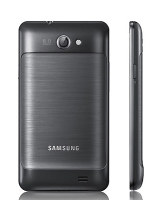
The back cover is one big plastic piece with a metallic inlay with brushed metal finish. We tugged at the metal inlay for a while until we realized that it’s only a part of the back cover and not the whole back cover. And you need to remove the whole thing to get to the battery.
Above and below the inlay, we find the 5MP camera with LED flash and the loudspeaker grill respectively. The camera is out in the open, with no guards against scratches. We assume it uses some kind of reinforced glass though and we really hope it will suffice, but somehow we aren't too optimistic about it.
The loudspeaker is placed on a low hump at the bottom of the phone (the bottom hump is a Galaxy S tradition). It gets slightly muffled when the phone is placed on a level surface.
The 5 megapixel camera lens is prone to scratches
Below the battery cover is the easily accessible SIM card slot and the not so easily accessible microSD card slot (it’s blocked by the battery). The battery has a large 1650mAh capacity but it’s too early to talk about battery life – when the design and software is finalized, we’ll take a better look at that.
The 1650mAh battery can store a lot of juice
The Samsung I9103 Galaxy Z might not be as thin and light as its sibling, but the metallic inlay and its heft make it feel very solid. At 9.5mm thick and 135g or so, it’s far from chubby and its tapered edges make it sit very well in the hand. It’s not that wide and tall despite its huge 4.2” screen either.
Samsung I9103 Galaxy Z in the hand
Before we proceed with the software we’d like to remind you once again that we’re testing a pre-production I9103 Galaxy Z unit and the design might change by the time the device launches. Now join us after the break.
Latest TouchWiz lives in the Gingerbread house
The Samsung Galaxy I9103 Galaxy Z runs Android 2.3.3 Gingerbread out of the box with TouchWiz 4.0 customizations – virtually identical to the software on the I9100.
You get up to 7 screens to populate with widgets, but don’t have to use all at once. The numbered dots that identify the homescreen panes serve as a scroll bar too. You can just tap on any dot to go on that homescreen or you can press and hold to scroll through the homescreens.
The TouchWiz 4.0 user interface comes preinstalled on top of the Android OS
You can do a pinching gesture to zoom out and add or delete homescreens. A press and hold on any homescreen (or Menu, Add) lets you pick one of four ways to customize the homescreen – add widgets, add shortcuts or folders, or change wallpaper.
In screen edit mode, widgets are docked at the bottom and scrolled horizontally. When you’ve found the one you need it can be dragged onto the screen. It’s similar to what we’ve seen in Bada, but with some 3D eye candy. Shortcuts and folders are picked from vertically-scrollable grids.
Editing the homescreen
Some of the widgets can be resized just by dragging the corner much like with widgets on the MOTOBLUR UI. It certainly gives you a lot of flexibility over use of screen real estate. Important widgets can be expanded to show more info, while the less frequently used ones can be made smaller to conserve space.
Resizing a widget
The Galaxy Z has four buttons docked at the bottom of its homescreen, which stay there even when you open the menu. You can remove or change them (except the home button which is fixed).
The main menu consists of side-scrollable panes, much like the homescreen. You can add new pages manually, by dragging an app to a new screen in edit mode. You can add folders to the menu too – just drag shortcuts from the menu to the Make Folder icon and give it a name. The same trick can be used to create new menu pages too.
Folders cannot be put inside folders and they use the icon of one of the apps inside, making them terribly hard to spot. We hope Samsung fixes that since we spent a few minutes looking for our new folder when it was right in front of us. Also, we wish we could dock a folder in the bottom row of four shortcuts.
When the launcher is in edit mode, you can uninstall applications (only the ones that you installed) just by tapping them. Tapping a folder will delete it, returning the apps back to the flat menu.
The main menu • Editing the menu • Creating a new folder
The notification area, one of the Android strengths, has five switches for Wi-Fi, Bluetooth, GPS, sound and rotation-lock. These are always accessible (unless there’s an app running in fullscreen mode, e.g. a game).
There’s the task manager too, which lets you terminate apps and clear RAM. You don’t normally need to do that since Android is pretty good at handling that kind of stuff (and the Samsung I9103 Galaxy Z has plenty of RAM), but power users will enjoy it nonetheless.
The notification area and the lock screen
A number of gestures you saw in the video can be used to interact with the phone – there’s the common turn-to-mute feature, double tap to activate voice commands in Car mode and more advanced stuff like tilt to zoom (works in Gallery and Browser) and tilt to pan (works when adding shortcuts/widgets to the homescreen or menu).
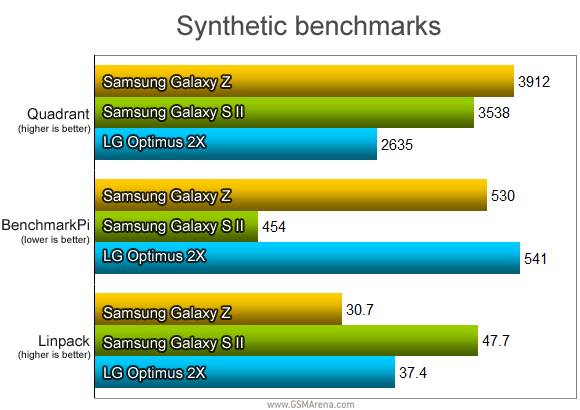
The phone is very responsive even in it’s pre-production stage. We’ve ran the usual batch of benchmarks to see how the Tegra 2 chipset performs in the Samsung I9103 Galaxy Z, compared to the LG Optimus 2X and the 1.2GHz Samsung I9100 Galaxy S II.
Again, keep in mind that these results could change as Samsung completes work on the software.
Surprisingly, the Tegra 2 powered Galaxy Z came out on top in Quadrant – beating the Exynos-packing Galaxy S II and even the Optimus 2X, which uses the same chipset. This might as well be due to some issue in the benchmark itself, though.
The Galaxy S II won the Linpack and BenchmarkPi tests, while the Galaxy Z and Optimus 2X traded places in those two tests. It will be interesting to see if the Galaxy Z manages to beat its Tegra 2 competitor after the software is finalized.
New Galaxy, old camera
The Samsung I9103 Galaxy Z comes with a 5MP auto-focus camera for photos of up to 2560 x 1920 pixel resolution. It comes with an LED flash but nothing in the way of lens protection or physical shutter key.
The camera module here is like the one in the original Galaxy S and not the 8MP unit in the other S II. The software has been updated though and the user interface is identical to the S II one.
The interface has two shortcut bars on each side of the viewfinder. On the right you get the still camera / camcorder switch, virtual shutter key and the gallery shortcut (which is a thumbnail of the last photo taken).
On the left you get several controls by default but the good news is that you can pick four shortcuts to put there – commonly used features need to be one tap away.
The camera interface can be tweaked to fit your needs
In terms of features, the Samsung I9103 Galaxy Z offers plenty of features –scene modes, face/smile detection, effects, geo-tagging and manual controls for ISO, metering mode and so on. Some features were missing – like touch focus and blink detection – but they might make it into the release version of the software.
Our Galaxy Z unit is very far from being production-ready, especially when it comes to the camera. The right sides of photos we took show some lens issue and a lot of the photos ended up underexposed.
Still, noise levels seem under control and there’s a good amount of captured detail for 5MP shots. We’ll take a harder look at the I9103 Galaxy Z camera when we get a final unit.
Samsung I9103 Galaxy Z camera samples
Video camera
The video camera interface is identical to the still camera one. You get the same customizable panel on the left for four shortcuts.
It records 720p videos, which have decent looking quality but unfortunately our pre-production unit still has some kinks that need to be worked out. We’ll hold off from posting sample videos for now and give Samsung’s engineers to finish their work.
The video camera interface
A great web browser
The Galaxy S line has seriously impressed us so far in terms of web browsing. A large part of that was due to the screen, but the tweaked software that produced smooth zooming and scrolling had a large role in that too.
The interface of the browser should be very familiar by now. It adheres to Google’s policy of minimalism – there’s the address bar at the top with a bookmarks shortcut next to it and that’s it. The rest of the controls are accessible with the Menu key.
Browsing GSMArena.com on the Samsung Galaxy Z
The browser supports both double tap and pinch zooming along with the new two-finger tilt zoom. There are niceties such as multiple tabs, text reflow, find on page and so on. A neat trick is to pinch zoom out beyond the minimum – that opens up the tabs view.
Page options and settings
Flash in the browser doesn’t get along with Tegra 2 in the Galaxy Z as well as it did with the Exynos in the Galaxy S. The Z can handle 480p YouTube videos but 720p is beyond reach (even though the original Galaxy S can do it after the Gingerbread update). Flash games on the other hand played smoothly.
Android has grown Hubs too
Hubs are not just for Windows Phone 7 – Samsung, at least, seems to think so. They’ve added a total of 4 Hubs to their new Android super phone.
The Social hub we’ve seen before – it combines you email accounts with social networking (Facebook, Twitter, MySpace, LinkedIn) and IM accounts (Gtalk, MSN and Yahoo! Messenger) and shows all incoming messages as one list with handy shortcuts to reply, mark as favorite and so on. There’s filtering by message source too, to help manage the inflow of incoming updates.
The Social Hub is a true communication nexus
The Music Hub lets you browse music online (with search tools, charts, lists of new releases and so on). You can preview songs (30 seconds each) and buy tracks or whole albums.
The Music Hub helps you discover and buy new albums and songs
Next up is the Readers Hub. You can subscribe to Internet newspapers, magazines or buy e-books. You can download free book previews. Extensive genre listings will help you discover new books to read.
The Readers Hub transforms your Galaxy S II into an eReader
Finally, there’s the Game Hub, which will quickly become your go to place for finding new games. The titles are separated into Social and Premium games and there’s a news section too. There’s a try-before-you-buy option, so you can check out a game before committing your cash. The nice thing about that Hub is it includes the titles by Gameloft, which are otherwise not available on the Android Market.
The Game Hub is great for mobile gaming fans
You could (and should) download NVIDIA’s Tegra Zone app, which will help you find the best games for your phone – it features games that are optimized for the Tegra chipset specifically.
First impressions
So close and yet so far - the Galaxy Z and Galaxy S II might share four fifths of their model names, but they are actually pretty different in nature . And even though the Samsung I9103 Galaxy Z probably won't end up as quite the world beater that its SuperAMOLED Plus packing sibling was, it can still give the current crop of dual-core smartphones a run for their money.
Speaking of money, it will be a deciding factor in the success of the I9103 Galaxy Z. It's an attractive package, but without the exclusivity of the SuperAMOLED Plus it will be harder to convince people to hand over their hard-earned cash. So a price-cut is mandatory for the Galaxy Z and seeing how the first pre-orders go Samsung will be delivering it.
That's why we feel the I9103 prospects are pretty good. Occupying the middle ground between the Galaxy S Plus (which is merely a refresh of the original Galaxy S) and the I9100 Galaxy S II flagship, the Galaxy Z delivers solid smartphone experience and good future proofing (with that dual-core CPU) without breaking the bank. And such devices were in particularly high demand the last time we checked.
Anyway we’ll give this one the attention it deserves when we get our hands on a finalized unit and see if it managed to live up to its potential.
The Galaxy S lineup is no stranger to versioning - the original Galaxy S relied on half a dozen different editions to achieve its market success. Its successor will obviously take a similar path as we just got its first body double in the face of the Samsung I9103 Galaxy Z. With Tegra 2 stepping in for the Exynos chipset and SC-LCD taking the place of the new generation SuperAMOLED Plus, the Galaxy S Z should be covering for the cases when the Galaxy S II is just slightly out of budget, while at the same time saving on the precious AMOLED panels.
Now, the Samsung I9100 is obviously a winning formula so Samsung should be extra careful with any changes that it introduces.
Tegra 2 is a fine alternative to Exynos and we already know what kind of performance to expect. We’ve seen the switch to SC-LCD before – with the I9003 Galaxy SL. With the numbers the SuperAMOLED Plus packing I9100 is selling, it’s no surprise that Samsung will try to sell a few units that don’t use up their scarce SuperAMOLED recourses.
We’ve summarized the specs of the Samsung I9103 Galaxy Z to get you acquainted with the device quickly, so we can move on to the fun stuff.
Samsung I9103 Galaxy Z at a glance:
General: GSM 850/900/1800/1900 MHz, 3G with HSPA
Form factor: Touchscreen bar phone
Dimensions: 125 x 66.1 x 9.5 mm, 135g
Display: 4.2" 16M-color SC-LCD capacitive touchscreen, 480 x 800 pixels
CPU: Dual-core 1GHz ARM Cortex-A9 processor, GeForce GPU, Tegra 2 chipset
Memory: 1GB RAM, 2GB ROM, 8GB storage, microSD card slot
OS: Android OS, v2.3.3 Gingerbread with TouchWiz 4.0
Camera: 5 megapixel auto-focus camera with LED flash; face detection, geo-tagging; 1.3MP front-facing camera
Video recording: 720p video recording
Connectivity: Wi-Fi b/g/n, Bluetooth 2.1 with A2DP, standard microUSB port, GPS receiver with A-GPS, 3.5mm audio jack, FM radio
Battery: 1650mAh
Misc: Built-in accelerometer, multi-touch input, proximity sensor, Swype text input, Office document viewer/editor
Clearly, the I9103 Galaxy Z is meant as a companion of the I9100 Galaxy S II – early pricing info also suggests that the two belong to different market segments.
We would have liked an 8MP camera and 1080p video capture, but if sticking to the 5MP/720p camera specs means we can munch on Gingerbread for less cash than the S II would cost, then we won’t complain. After all, the original Galaxy S had a similar camera module and we’re quite pleased with it.
Before proceeding further, we should point out that we’re using a pre-production model of the Samsung I9103 Galaxy Z and the hardware might change before the design is finalized. The software looks identical to the one in the I9100 Galaxy S II, so that probably won’t see much (if any) changes. Further optimizations to suit the new chipset seem likely though.
It may not have the slender, 8.5mm frame of its big brother, but the I9103 Galaxy Z is a good looking device. Join us on the next page, as we do a proper inspection of its hardware.
Design and construction
If not for the model number, we probably wouldn’t be comparing the I9100 and I9103 directly in terms of hardware, but we have no choice now.
One of the major bragging points of the regular Galaxy S II is just how thin and light it is. The I9103 Galaxy Z however measures 9.5mm thick and weighs 135 grams. Not that that’s really slim and light (given the size) even by today’s standards, but it’s not as headline grabbing as the 8.5mm waistline and the 116 g weight of the I9100.
Samsung I9103 Galaxy Z and I9100 Galaxy S II side by side
The SC-LCD screen on the I9103 Galaxy Z has a 4.2” diagonal with 480 x 800 pixels resolution. It’s pretty bright and with good image quality and viewing angles. The blacks are not nearly as deep as on a SuperAMOLED unit, but judging them by the LCD standards they are actually quite good.
The front looks very similar to the front of the SuperAMOLED Plus packing Galaxy S II. It’s just the home button that’s different. So, above the screen we have (from left to right) the 1.3MP video call camera, ambient light sensor, proximity sensor and earpiece.
The SC-LCD unit is good • the sensor array, secondary camera and earpiece
Below the display there are three keys only – the touch-sensitive menu and back buttons are on either side of a hardware home key. A long press on the menu key launches the search, so in effect users still have a dedicated search key. As usual, pressing and holding the home key activates the task switcher.
The three Android keys below the display
The only thing of interest on the left side of the Samsung I9103 Galaxy Z is the volume rocker. It’s a bit on the thin side, but that doesn't cause any usability issues.
The power/lock key is placed high up on the right side of the handset. It is a bit hard to reach but Samsung has used this spot on many of their handsets, so it shouldn’t be much trouble for those who come from another Samsung smartphone.
The volume rocker on the left • Power/Lock combo key on the right
All there is on the top side of the phone is the 3.5mm audio jack. At the bottom, there’s the microUSB port, which doubles as a charging port. Both the audio jack and microUSB port are left open to the elements.
The 3.5mm jack is on top • the microUSB port is at the bottom
The back cover is one big plastic piece with a metallic inlay with brushed metal finish. We tugged at the metal inlay for a while until we realized that it’s only a part of the back cover and not the whole back cover. And you need to remove the whole thing to get to the battery.
Above and below the inlay, we find the 5MP camera with LED flash and the loudspeaker grill respectively. The camera is out in the open, with no guards against scratches. We assume it uses some kind of reinforced glass though and we really hope it will suffice, but somehow we aren't too optimistic about it.
The loudspeaker is placed on a low hump at the bottom of the phone (the bottom hump is a Galaxy S tradition). It gets slightly muffled when the phone is placed on a level surface.
The 5 megapixel camera lens is prone to scratches
Below the battery cover is the easily accessible SIM card slot and the not so easily accessible microSD card slot (it’s blocked by the battery). The battery has a large 1650mAh capacity but it’s too early to talk about battery life – when the design and software is finalized, we’ll take a better look at that.
The 1650mAh battery can store a lot of juice
The Samsung I9103 Galaxy Z might not be as thin and light as its sibling, but the metallic inlay and its heft make it feel very solid. At 9.5mm thick and 135g or so, it’s far from chubby and its tapered edges make it sit very well in the hand. It’s not that wide and tall despite its huge 4.2” screen either.
Samsung I9103 Galaxy Z in the hand
Before we proceed with the software we’d like to remind you once again that we’re testing a pre-production I9103 Galaxy Z unit and the design might change by the time the device launches. Now join us after the break.
Latest TouchWiz lives in the Gingerbread house
The Samsung Galaxy I9103 Galaxy Z runs Android 2.3.3 Gingerbread out of the box with TouchWiz 4.0 customizations – virtually identical to the software on the I9100.
You get up to 7 screens to populate with widgets, but don’t have to use all at once. The numbered dots that identify the homescreen panes serve as a scroll bar too. You can just tap on any dot to go on that homescreen or you can press and hold to scroll through the homescreens.
The TouchWiz 4.0 user interface comes preinstalled on top of the Android OS
You can do a pinching gesture to zoom out and add or delete homescreens. A press and hold on any homescreen (or Menu, Add) lets you pick one of four ways to customize the homescreen – add widgets, add shortcuts or folders, or change wallpaper.
In screen edit mode, widgets are docked at the bottom and scrolled horizontally. When you’ve found the one you need it can be dragged onto the screen. It’s similar to what we’ve seen in Bada, but with some 3D eye candy. Shortcuts and folders are picked from vertically-scrollable grids.
Editing the homescreen
Some of the widgets can be resized just by dragging the corner much like with widgets on the MOTOBLUR UI. It certainly gives you a lot of flexibility over use of screen real estate. Important widgets can be expanded to show more info, while the less frequently used ones can be made smaller to conserve space.
Resizing a widget
The Galaxy Z has four buttons docked at the bottom of its homescreen, which stay there even when you open the menu. You can remove or change them (except the home button which is fixed).
The main menu consists of side-scrollable panes, much like the homescreen. You can add new pages manually, by dragging an app to a new screen in edit mode. You can add folders to the menu too – just drag shortcuts from the menu to the Make Folder icon and give it a name. The same trick can be used to create new menu pages too.
Folders cannot be put inside folders and they use the icon of one of the apps inside, making them terribly hard to spot. We hope Samsung fixes that since we spent a few minutes looking for our new folder when it was right in front of us. Also, we wish we could dock a folder in the bottom row of four shortcuts.
When the launcher is in edit mode, you can uninstall applications (only the ones that you installed) just by tapping them. Tapping a folder will delete it, returning the apps back to the flat menu.
The main menu • Editing the menu • Creating a new folder
The notification area, one of the Android strengths, has five switches for Wi-Fi, Bluetooth, GPS, sound and rotation-lock. These are always accessible (unless there’s an app running in fullscreen mode, e.g. a game).
There’s the task manager too, which lets you terminate apps and clear RAM. You don’t normally need to do that since Android is pretty good at handling that kind of stuff (and the Samsung I9103 Galaxy Z has plenty of RAM), but power users will enjoy it nonetheless.
The notification area and the lock screen
A number of gestures you saw in the video can be used to interact with the phone – there’s the common turn-to-mute feature, double tap to activate voice commands in Car mode and more advanced stuff like tilt to zoom (works in Gallery and Browser) and tilt to pan (works when adding shortcuts/widgets to the homescreen or menu).
The phone is very responsive even in it’s pre-production stage. We’ve ran the usual batch of benchmarks to see how the Tegra 2 chipset performs in the Samsung I9103 Galaxy Z, compared to the LG Optimus 2X and the 1.2GHz Samsung I9100 Galaxy S II.
Again, keep in mind that these results could change as Samsung completes work on the software.
Surprisingly, the Tegra 2 powered Galaxy Z came out on top in Quadrant – beating the Exynos-packing Galaxy S II and even the Optimus 2X, which uses the same chipset. This might as well be due to some issue in the benchmark itself, though.
The Galaxy S II won the Linpack and BenchmarkPi tests, while the Galaxy Z and Optimus 2X traded places in those two tests. It will be interesting to see if the Galaxy Z manages to beat its Tegra 2 competitor after the software is finalized.
New Galaxy, old camera
The Samsung I9103 Galaxy Z comes with a 5MP auto-focus camera for photos of up to 2560 x 1920 pixel resolution. It comes with an LED flash but nothing in the way of lens protection or physical shutter key.
The camera module here is like the one in the original Galaxy S and not the 8MP unit in the other S II. The software has been updated though and the user interface is identical to the S II one.
The interface has two shortcut bars on each side of the viewfinder. On the right you get the still camera / camcorder switch, virtual shutter key and the gallery shortcut (which is a thumbnail of the last photo taken).
On the left you get several controls by default but the good news is that you can pick four shortcuts to put there – commonly used features need to be one tap away.
The camera interface can be tweaked to fit your needs
In terms of features, the Samsung I9103 Galaxy Z offers plenty of features –scene modes, face/smile detection, effects, geo-tagging and manual controls for ISO, metering mode and so on. Some features were missing – like touch focus and blink detection – but they might make it into the release version of the software.
Our Galaxy Z unit is very far from being production-ready, especially when it comes to the camera. The right sides of photos we took show some lens issue and a lot of the photos ended up underexposed.
Still, noise levels seem under control and there’s a good amount of captured detail for 5MP shots. We’ll take a harder look at the I9103 Galaxy Z camera when we get a final unit.
Samsung I9103 Galaxy Z camera samples
Video camera
The video camera interface is identical to the still camera one. You get the same customizable panel on the left for four shortcuts.
It records 720p videos, which have decent looking quality but unfortunately our pre-production unit still has some kinks that need to be worked out. We’ll hold off from posting sample videos for now and give Samsung’s engineers to finish their work.
The video camera interface
A great web browser
The Galaxy S line has seriously impressed us so far in terms of web browsing. A large part of that was due to the screen, but the tweaked software that produced smooth zooming and scrolling had a large role in that too.
The interface of the browser should be very familiar by now. It adheres to Google’s policy of minimalism – there’s the address bar at the top with a bookmarks shortcut next to it and that’s it. The rest of the controls are accessible with the Menu key.
Browsing GSMArena.com on the Samsung Galaxy Z
The browser supports both double tap and pinch zooming along with the new two-finger tilt zoom. There are niceties such as multiple tabs, text reflow, find on page and so on. A neat trick is to pinch zoom out beyond the minimum – that opens up the tabs view.
Page options and settings
Flash in the browser doesn’t get along with Tegra 2 in the Galaxy Z as well as it did with the Exynos in the Galaxy S. The Z can handle 480p YouTube videos but 720p is beyond reach (even though the original Galaxy S can do it after the Gingerbread update). Flash games on the other hand played smoothly.
Android has grown Hubs too
Hubs are not just for Windows Phone 7 – Samsung, at least, seems to think so. They’ve added a total of 4 Hubs to their new Android super phone.
The Social hub we’ve seen before – it combines you email accounts with social networking (Facebook, Twitter, MySpace, LinkedIn) and IM accounts (Gtalk, MSN and Yahoo! Messenger) and shows all incoming messages as one list with handy shortcuts to reply, mark as favorite and so on. There’s filtering by message source too, to help manage the inflow of incoming updates.
The Social Hub is a true communication nexus
The Music Hub lets you browse music online (with search tools, charts, lists of new releases and so on). You can preview songs (30 seconds each) and buy tracks or whole albums.
The Music Hub helps you discover and buy new albums and songs
Next up is the Readers Hub. You can subscribe to Internet newspapers, magazines or buy e-books. You can download free book previews. Extensive genre listings will help you discover new books to read.
The Readers Hub transforms your Galaxy S II into an eReader
Finally, there’s the Game Hub, which will quickly become your go to place for finding new games. The titles are separated into Social and Premium games and there’s a news section too. There’s a try-before-you-buy option, so you can check out a game before committing your cash. The nice thing about that Hub is it includes the titles by Gameloft, which are otherwise not available on the Android Market.
The Game Hub is great for mobile gaming fans
You could (and should) download NVIDIA’s Tegra Zone app, which will help you find the best games for your phone – it features games that are optimized for the Tegra chipset specifically.
First impressions
So close and yet so far - the Galaxy Z and Galaxy S II might share four fifths of their model names, but they are actually pretty different in nature . And even though the Samsung I9103 Galaxy Z probably won't end up as quite the world beater that its SuperAMOLED Plus packing sibling was, it can still give the current crop of dual-core smartphones a run for their money.
Speaking of money, it will be a deciding factor in the success of the I9103 Galaxy Z. It's an attractive package, but without the exclusivity of the SuperAMOLED Plus it will be harder to convince people to hand over their hard-earned cash. So a price-cut is mandatory for the Galaxy Z and seeing how the first pre-orders go Samsung will be delivering it.
That's why we feel the I9103 prospects are pretty good. Occupying the middle ground between the Galaxy S Plus (which is merely a refresh of the original Galaxy S) and the I9100 Galaxy S II flagship, the Galaxy Z delivers solid smartphone experience and good future proofing (with that dual-core CPU) without breaking the bank. And such devices were in particularly high demand the last time we checked.
Anyway we’ll give this one the attention it deserves when we get our hands on a finalized unit and see if it managed to live up to its potential.









Comment