Common Misconceptions about TVs and PC to TV Converters: what am I buying?

Collapse
X
 
  • Filter
  • Time
  • Show
Clear All
new posts
  • xman
    Admin
    • Sep 2006
    • 24007

    Common Misconceptions about TVs and PC to TV Converters: what am I buying?

    Common Misconceptions about TVs and PC to TV Converters: Essentially, what am I buying?

    Misconception #1: Spending more money will give me a better TV picture.
    Truth: When buying a TV, this may be true, but when buying a PC to TV converter it typically is not.
    The display quality difference between our least expensive and most expensive model is virtually non-existent. What differentiates each model is the bells-n-whistles, or "features" in the marketing vernacular.

    Misconception #2: I can turn my TV into a big monitor.
    Truth: The technology of basic TV is essentially the same as when it was first introduced...over 60 years ago! The VGA or computer display technology was developed much later, and thus able to take advantage of the latest technology of the day.
    The NTSC standard (the current standard for TV in the US) has a fixed vertical resolution of 525 horizontal lines stacked on top of each other, with varying amounts of "lines" making up the horizontal resolution, depending on the electronics and formats involved. There are 59.94 fields displayed per second. A field is a set of even lines, or odd lines. The odd and even fields are displayed sequentially, thus interlacing the full frame. One full frame, therefore, is made of two interlaced fields, and is displayed about every 1/30 of a second.
    The VGA standard can support a wide variety of resolutions and refresh rates that far surpass the 525 horizontal lines of TV. Also, a VGA display does not compose the display out of "lines", but out of pixels. By increasing the number of pixels from 640x480 to 1024x769, the display can obtain a greater clarity. A TV's clarity is, by contrast, fixed to a certain extent.
    When you convert the progressive pixel-based image into the interlace TV image, there is a limit to how clear the display can be. Typically, the image looks slightly fuzzy and the detail is softer.
    Why, you might ask, are there PC to TV converters if you cannot turn a TV into a monitor? As imperfect a technology as TV is, they are much more plentiful and inexpensive than a 32 inch monitor. Whether playing multimedia (DVDs, internet downloads, etc.), slide shows or PC games, a PC to TV converter can enhance the experience by taking advantage of the large size of a typical TV.
  • xman
    Admin
    • Sep 2006
    • 24007

    #2
    OK, so what do we need to connect your PC to a TV?
    VIDEO CARD WITH TV-OUT (Video Out)
    Naturally we do need some kind of connection on our PC to connect to the TV, we're looking for a TV-out connector. TV-Out only means: VIDEO out in such a sense that our TV could be able to handle it.
    A lot of laptops do have a TV-Out as well.
    Tip: When buying a laptop, make surte it has TV-Out. Laptops are portable and can therefor be placed next to your TV when you decide to watch a DivX movie!
    Note: TV-Out only means that there is a Video signal comming from this pin, that can be connected to your TV. This is an entirely different signal than the signal needed for the antenna connector on your TV!
    DOES MY PC HAVE A TV-OUT (Video Out)?
    Commonly, you will be able to identify this by looking at the back of your PC, look for the VideoCard (your VGA monitor is also connected to this card!).
    Most videocards by ATI and nVidia (but not all!) have such a connector. It's a MUST for a modern videocard.
    Tip: Since price difference is minimal or even zero, make sure a videocard you want to buy has TV-Out. You might not use it right away, but it is damn handy later on. Adding one later is very difficult if not impossible!
    S-Video (also known as Super Video or S-VHS)
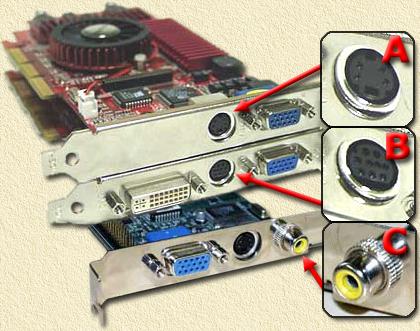
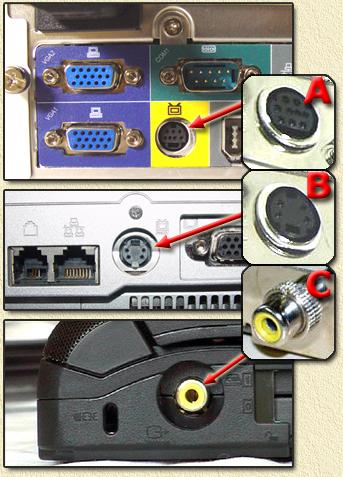
    Commonly, a TV-Out connector is a S-VIDEO connector. It looks a bit like a connector for your mouse/keyboard (see A and B in the pictures below). These come in several variants;
    - with Video-IN and Video-Out signals in one connector
    - using Composite video or Super Video
    - only S-VIDEO
    - only Composite video
    Usually special cables come with these cards, that convert the connector to a more common connector, like a tulip connector for composite video.
    Tip: When starting out, do your first attempts to connect the PC to a TV using the cables that came with the card!
    Naturally, when you TV supports S-VIDEO, then please use a S-VIDEO cable to connect your PC to your TV as it will result in the best quality.
    Composite Video
    Some cards have a tulip connector (see C in the pictures below). This commonly is a Composite video signal, where color and synchronisation signals are mixed into 1 signal.
    Combinations of S-VIDEO and composite video occure - although rarely - as well.
    SOME EXMAMPLES
    Below you'll see some pictures of TV-Out connectors.

    Some examples of VideoCards with TV-Out
    PC's with an onboard videocard or laptops, can have TV-Out connectors as well.
    In the pictures below you see images of a Shuttle SN41G2, a Sager laptop and a Toshiba laptop.

    Onboard videocards and laptops can have TV-Out as well
    CONNCTORS ON YOUR TV-SET
    TV-Out is all nice and dandy, but we do need a similar connector on the TV-Set, called TV-IN or Video-IN (also: AUX or EXTERN).
    Do not forget that you will also need to connect your sound card to the TV for sound! We do need the LINE-OUT connector of the soundcard for this purpose.
    Tip: if you TV is missing a suitable connector, then consider using your VCR instead if this one does have a suitable connector. Set you TV to the VCR channel en set your VCR to AUX or EXTERN.
    These are the connectors you come across on your TV;
    Antenna (you will need additional equipment for this!)
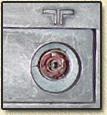
    This round connector, usually on the back of yout TV, is intended for the antenna or cable. This is not directly suitable for use with your PC's TV-Out!
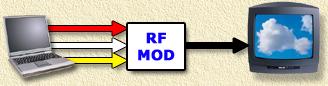
    The antenna connector is not intended for Video-IN. However a RF modulator can help with this. It converts the Video/Audio signal to an antenna signal. It's basically the same "converter" that is installed in a VCR as well ...

    RF modulator converts audio and video into RF (antenna) sigaal
    The signals (video and audio) of your PC are connected to the RF-modulator using tulip connectors.

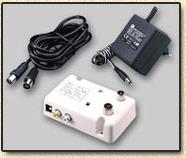
    RF Modulator
    Tip: Most RF modulators you can buy are MONO AUDIO, so make sure you're buying a STEREO version! Commonly you will find these RF-modulators (VHF) at satellite stores.
    Antenna connectors (the most common ones) are these two;
    • Europeas connector
    Commonly used in European TV equipment. One simply presses the connector on to the connector in the TV.
    This connector is rarely found in the US.

    Europeas antenna connector
    • American/US Connector
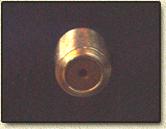
    This connector is more common in the US. One "screws" the connector to the TV.

    American antenna connector
    SCART (you'll need to get a separate cable for that)
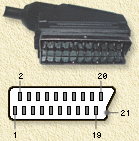
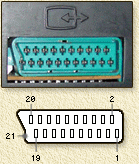
    This rather weird connector is commonly used in European TV equipment like TV, VCD, DVD, etc. I haven't seen these much in the US.
    Usually you'll find it at the backside of your equipment. The great thing about this sonnector is that it holds all connections you'll need - including audio.
    SCART connector (male) SCART connector (female)
    Downside is that you will need to build or buy a separate cable. Below you see the pinout of the SCART connector and how to connect it to a S-VIDEO or Composite Video tulip connector:
    PIN Signal Composite PC connector S-VIDEO PC connector
    1
    Audio OUT (right) - -
    2
    Audio IN (right) Line-out right soundcard Line-out right soundcard
    3
    Audio OUT (left or mono) - -
    4
    Shielding (audio) Line-out shielding soundcard (GND) Line-out shielding soundcard (GND)
    5
    Shielding (blue) - -
    6
    Audio IN (left or mono) Line-out left soundcard Line-out left soundcard
    7
    RGB Blue IN - -
    8
    Switch (Audio/RGB/16:9) - -
    9
    Shielding (green) - -
    10
    Clock out (clock pulse) - -
    11
    RGB Green IN - -
    12
    Data OUT - -
    13
    Shielding (red) - -
    14
    Data ground - -
    15
    RGB Red IN / Chrominance (C) - Chrominance videocard (pin 4)
    16
    Blanking signal - -
    17
    Shielding (Composite) - -
    18
    Blanking ground - -
    19
    Composite Video OUT - -
    20
    Composite Video IN / Luminance (Y) Composite video, videocard (pin 6) Luminance videocard (pin 3)
    21
    Ground Composite shielding videocard (pin 1) Shielding videocard (pin 1)
    *Note: the pinmber between brachet, indicate the pins of a S-Video connector!
    Note: We do need to connect Audio as well with this connector. Audio can be taken from "LINE-OUT" of the soundcard!
    In the S-VIDEO section, you will find more info on the S-VIDEO connector.
    Composite Video and Audio Left/Right in tulip-connectors
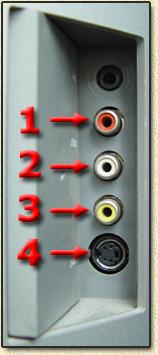
    More recent TV's have separate tulips for audio and video input. Sometimes on the front, side or back of a TV or VCR.
    Connector Signal 1 - Red tulip Audio Right 2- White tulip Audio Left 3- Yellow ttulipulp Video IN 4- Black connector S-Video IN
    Note: the core of the tulip connector is the signal. The silver ring around it is shielding.
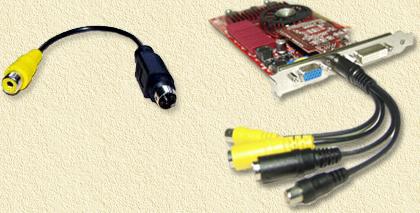
    Most video cards come with special cable to go from S-VIDEO to tulip. Some are simple (left) and some are very complex (right):

    TV-Out cables: simple and complex
    The cable on the right is for example for use with TV-IN enabed cards.
    As you might have noticed: both the adpater cables, the videocard and the TV have FEMALE tulip connector and will not fit. You will need to get a cable with a male tulip connector on each end of the cable in order to connect these devices ....
    S-Video
    S-Video isn't used often in Europe. In the US it's a more common connector. The advantage is that this is a rather small cable. The downside is that it's not so very easy to insert the connector.
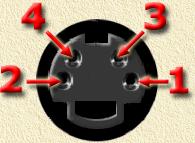
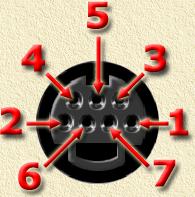
    Here you see two variants of the S-VIDEO connector, the 4-pin and the 7-pin variant:

    4-Pin variant

    7-Pin variant
    S-Video connector pinout (female)

    Pin
    Signal
    1
    Ground
    2
    Ground
    3
    Luminance
    4
    Chrominance
    5
    -
    6
    Composite Video
    7
    Ground Software
    After connecting the hardware we do need to do some settings in the software of the PC.
    Required settings for TV-Out are usually done using tools that come with the drivers of your videocard. As these are different for each manufacturer, we will discuss these on a different page.
    ATI cards used to be mostly used in laptop, but now a days ATI is working on a strong come back in desktops as well - and in my option offer much more performance than their nVidia counter parts.
    nVidia is commonly known for it's desktop graphics, but has entered the laptop market as well with their Geforce2Go and Geforce4Go. They're not bad, but I still prefer ATI.
    Note: do not use the drivers for the desktop graphics cards on laptops. Rather use the drivers you can download from the manufacturers website of your laptop!

    Comment

    • sumith
      • Sep 2006
      • 2000

      #3
      thanks a billion xmanji for this great info

      keep posting for us

      Comment

      • friend
        Weindianvip
        • Oct 2006
        • 496

        #4
        great information..thanks
        Friend

        Comment

        • sparrow
          • Dec 2006
          • 3974

          #5
          wow great thanx a lot
          Never regret a day in your life. Good days give you happiness; bad days give you experiences; both are essential to life-----------------------------------------------------------------------------

          Comment

          Working...
          X